How Separation Engine works
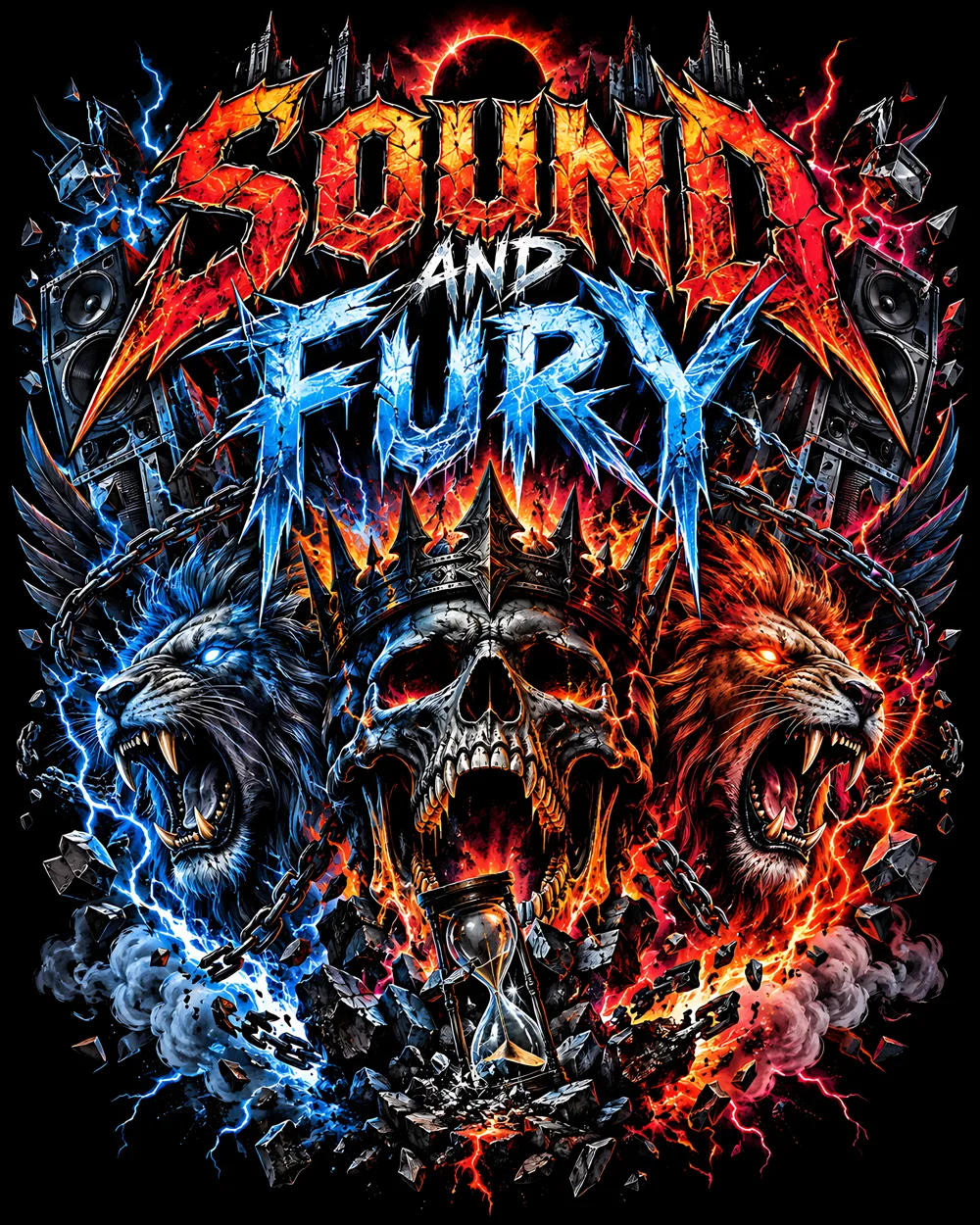
Every feature, start to finish, on one real job: the Sound and Fury art separated in Sim process on a black shirt. Screenshots are from the live tool.
1Start your trial
Every sep starts with a free account. Creating one starts a 7-day trial with 2 AI seps and 5 Engine seps, downloads included, no card. A sep is one piece of art: re-rips, a new shirt color, new settings or a different method on the same art don't use another one. After the trial, Starter gives you 25 AI seps and 25 Engine seps a month; Pro and Shop give you unlimited Engine seps and more AI seps. See plans.
2Engine sep or AI sep
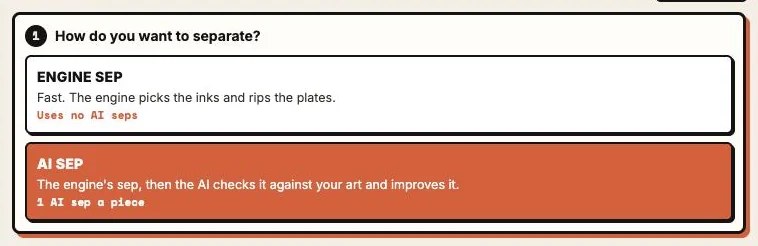
Before any art goes in, pick how to separate it. The drop area stays shut until you do.
- Engine sep: fast. The engine reads the art, picks the inks and rips the plates. Uses no AI seps. Right for clean logo art, quick quotes and repeat jobs.
- AI sep: the engine's sep, then the AI checks the predicted print against your art and improves it: it adds or drops inks, tries screen counts and tunes the plates, and keeps whichever version scores better. Uses 1 AI sep per piece of art.
Your pick is remembered. Change it any time with Change above the drop area or the switch in the AI card.
3Before the rip
Drop the art (JPG, PNG or WebP) or click to browse. Nothing separates until two things are settled:
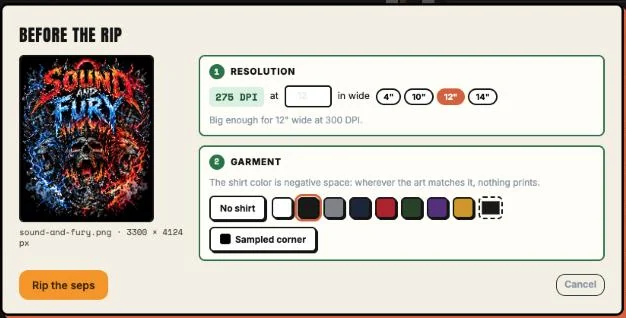
- Resolution. Films want about 300 DPI at print size. Pick the print width (4", 10", 12", 14" or your own). Low-res art gets an Upscale offer: Smooth is an instant clean resize, AI rebuilds real edge detail on your computer (paid plans and the trial). Or keep it as is.
- Garment. Pick the shirt color, sample it from the art, or choose No shirt for art that's already cut out. The shirt is negative space: wherever it's the closest match to the art, nothing prints. Dark shirts get an underbase automatically.
The Sound and Fury art is 3300 px wide, about 275 DPI at 12", so it rips as is on a black shirt.
4Pick the method
| Method | What it does | Use it for |
|---|---|---|
| Spot colors | Every pixel snaps to one flat ink (or the shirt). Crisp, solid plates. | Logos, type, vector-style art |
| Sim process | A small set of inks blends with halftone dots to rebuild the art. Areas one ink already matches print solid. | Painted, photo or gradient art, especially on darks. This example. |
| Index | Diffusion dither: every pixel is one solid ink, no halftone screens or angles. | Forgiving prints, no moiré |
| 4-color | CMYK process: transparent inks overprinting in halftones. | Photos on white or light shirts |
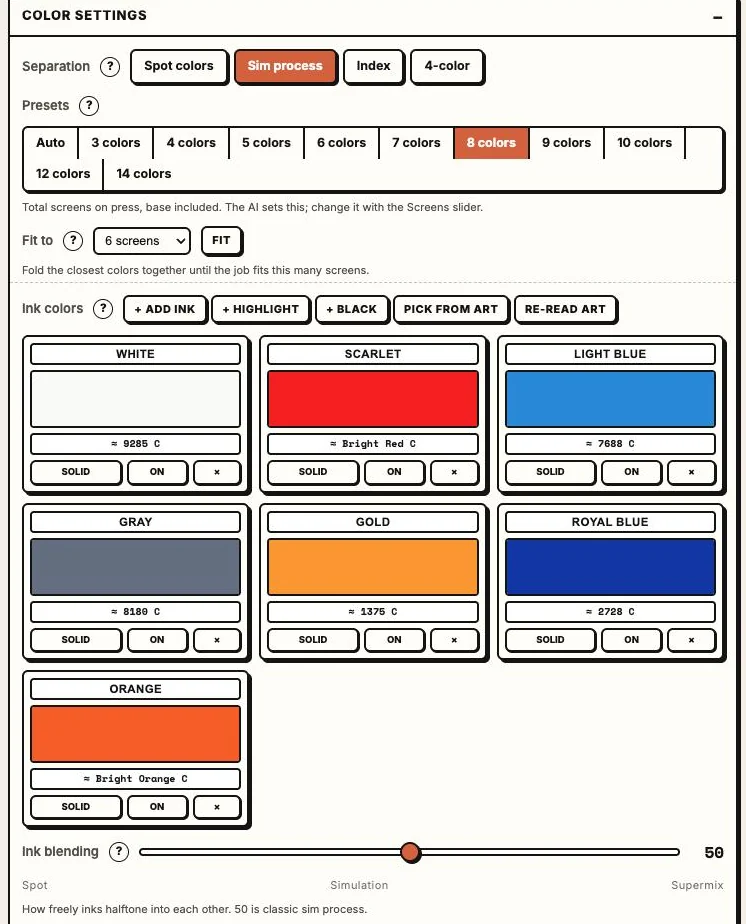
New art is read on load: flat art starts in Spot with Auto, painted art starts in Sim. The Presets row sets the screen count, and it includes the underbase: 8 colors on a black shirt is the base plus 7 inks. Auto finds the smallest set that still holds the look.
5Read the preview
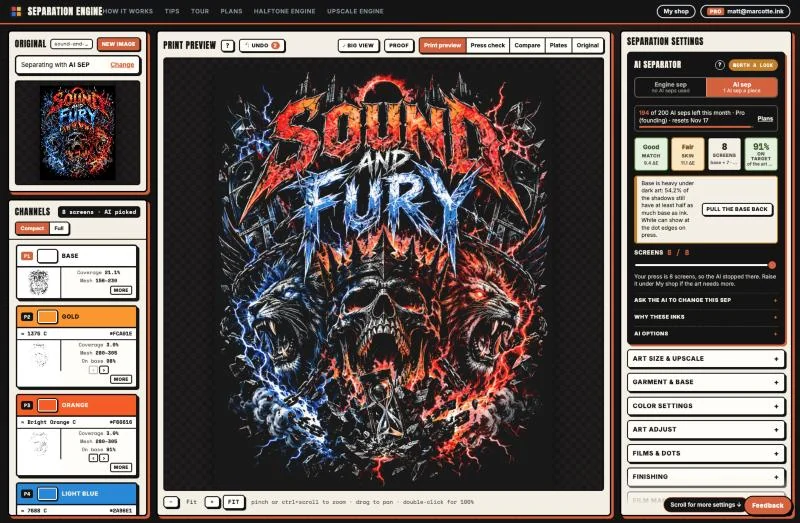
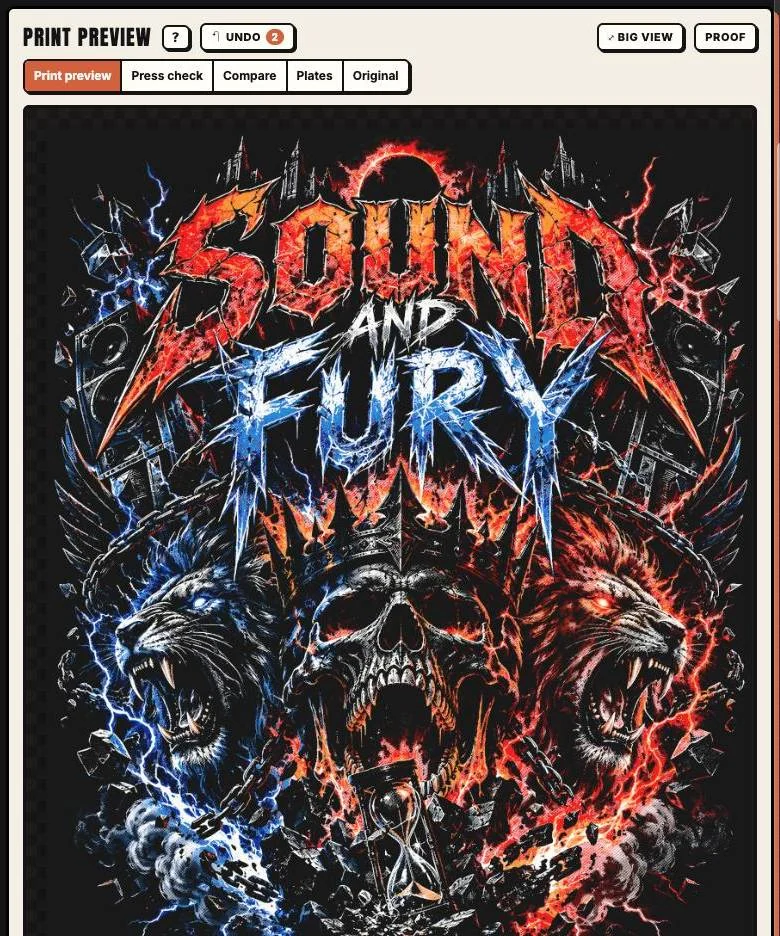
The tabs above the preview show the same sep five ways. This is the Sound and Fury art as the engine separated it: Sim process, black shirt, a base plus 7 inks.
- Print preview: the finished print on the shirt, every screen as real halftone dots in print order. Ink without base under it reads darker on a dark shirt, just like on press.
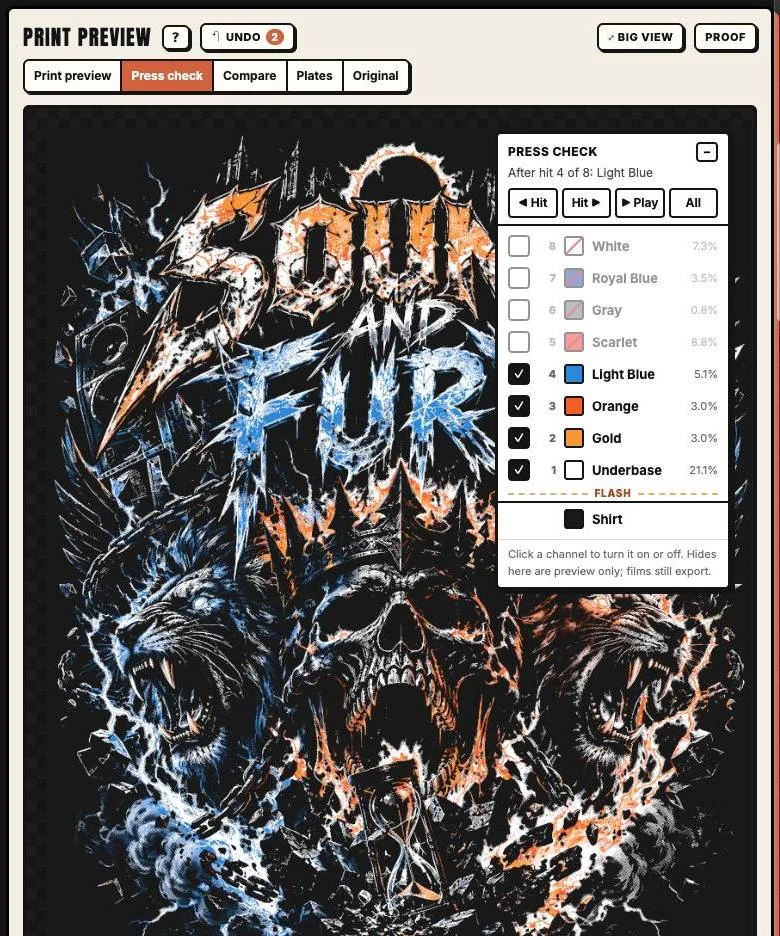
- Press check: build the print one hit at a time (next step).
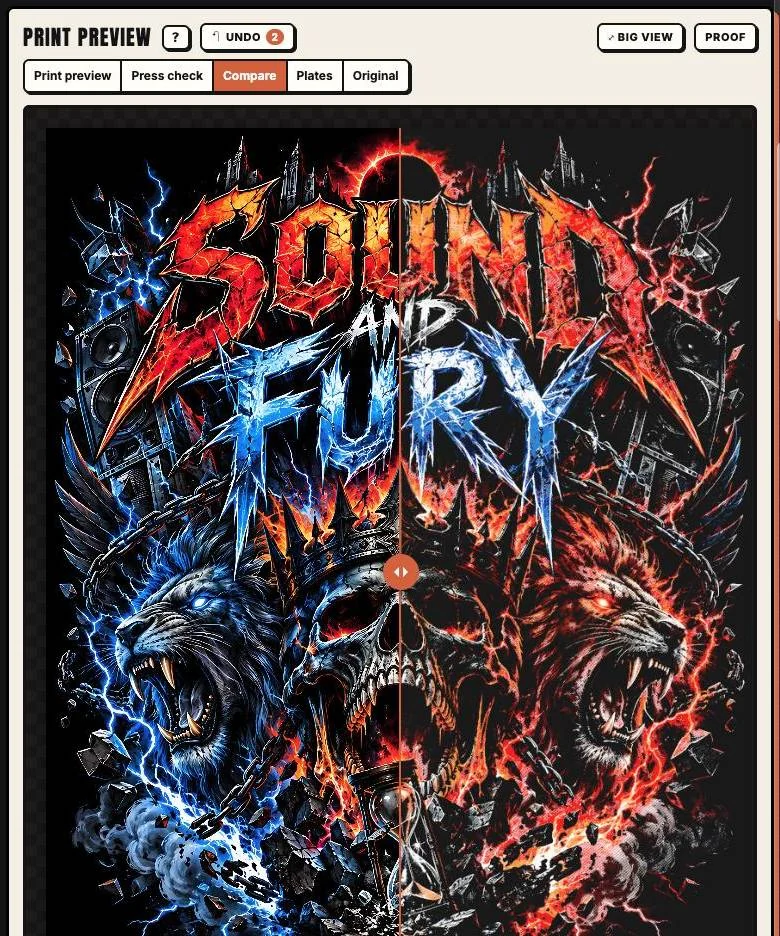
- Compare: drag the handle to wipe between your art and the predicted print.
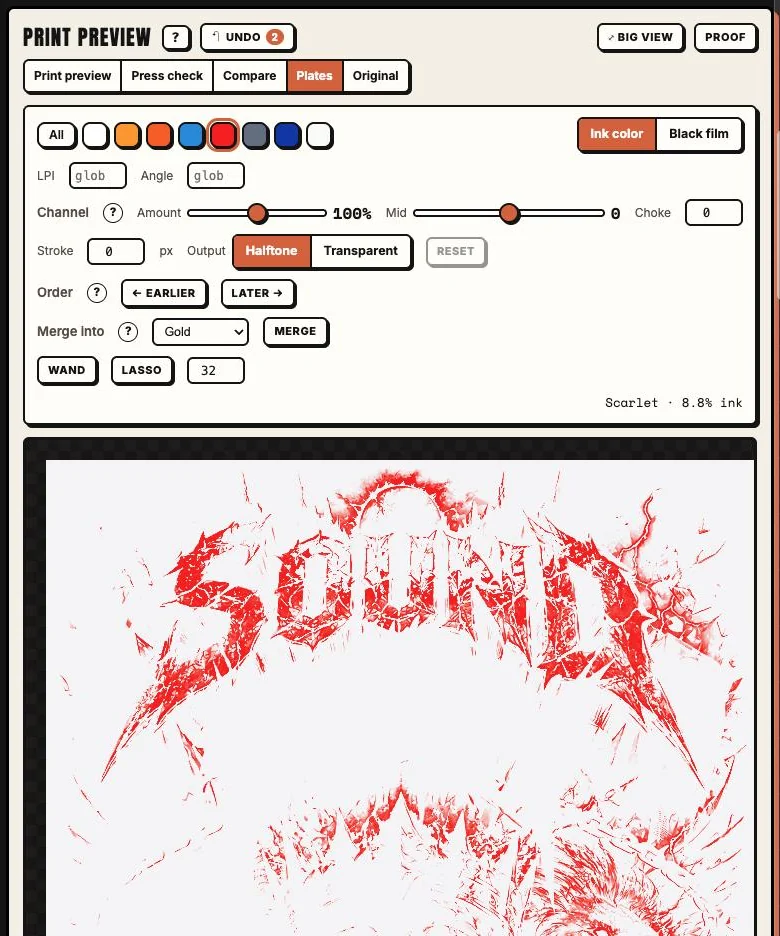
- Plates: every screen in a grid, or one plate at a time as its ink color or as the black film.
- Original: the art as uploaded.
Zoom with the + and − buttons, pinch or ctrl + scroll; drag to pan; double-click for 100%. Undo steps back through your changes.
6Press check
Press check prints the job hit by hit in print order, so you see exactly what the base does, where each ink lands and what the flash covers before you burn a screen. Step with ◀ Hit / Hit ▶, ▶ Play it through, or tick channels on and off to see the print without them (preview only; films still export).
7Channels
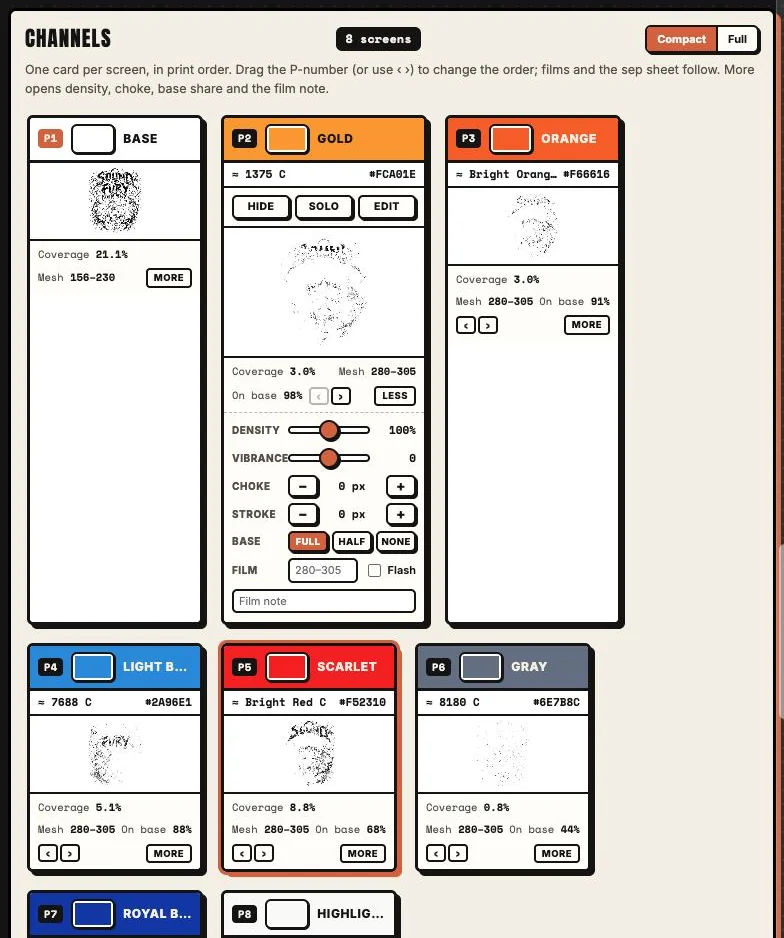
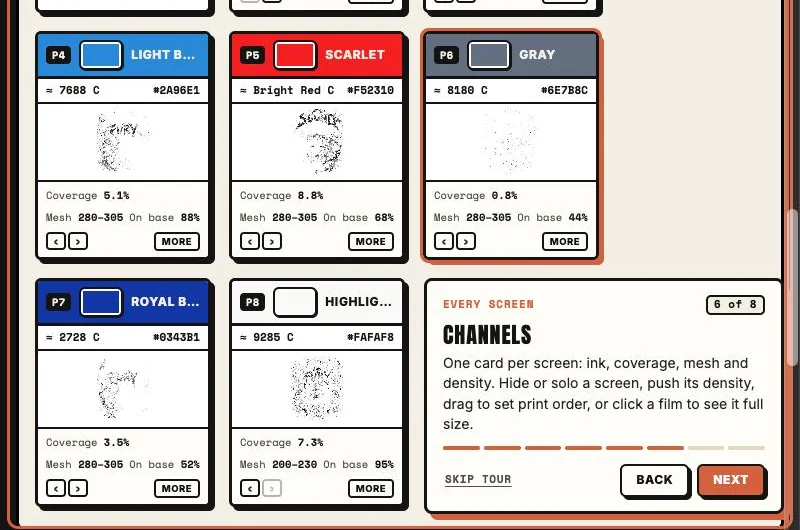
Each card in the Channels panel is one screen, in print order: its ink color and nearest Pantone, coverage, suggested mesh and how much of it sits on base. Drag the P-number (or use ‹ ›) to change the print order. More opens the card:
- Hide, Solo, Edit: hide the screen in the preview, show it alone, or open it in Plates.
- Density and Vibrance: push or pull how much ink the screen lays down and how strong its color reads.
- Choke and Stroke: shrink or grow the screen 1 px at a time.
- Base: Full, Half or None under this ink.
- Film: the mesh for this screen, Flash after it, and a note printed on its film.
In Color settings you can click any ink to change its color or name, turn it off, lock it Solid so flat areas of that color print 100%, or remove it. + Add ink finds the most-needed missing ink, Pick from art takes one from the preview, + Highlight and + Black add those screens, and Fit to folds the closest inks together until the job fits your screen count.
In Plates, the bar above a single plate has Amount and Mid (density and midtones), Choke, Stroke, Output (halftone or transparent), Order, Merge into, and per-plate LPI and angle.
8Edit plates in Big view
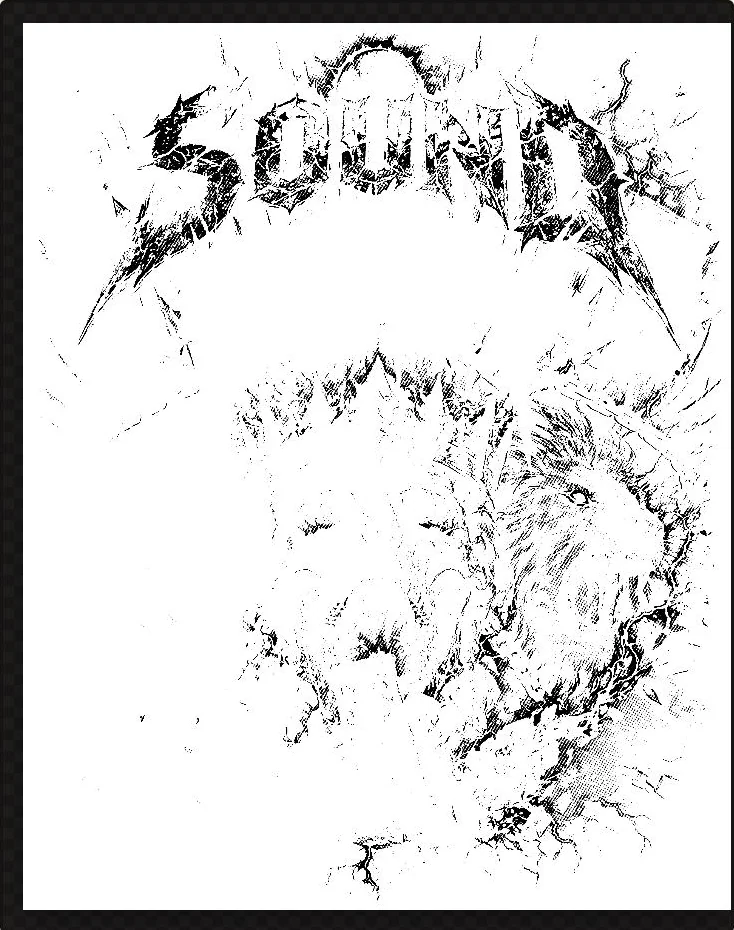
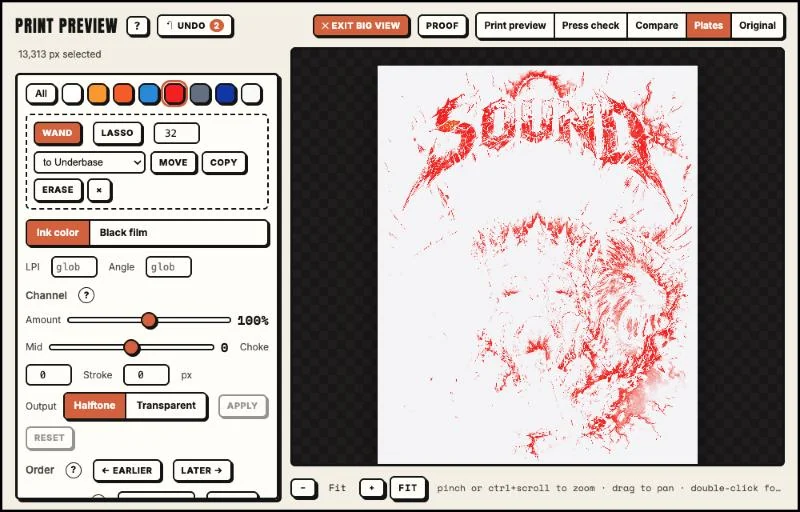
Open a plate in Plates, then hit Big view (or pick the Wand or Lasso, which opens it for you). The preview fills the window and the plate tools sit in a rail beside it.
- Wand: click a patch of color to select it; click more to add. The number sets the tolerance.
- Lasso: drag a loop around an area to select it.
- Move or Copy the plate's ink inside the selection onto another plate, or Erase it (Delete key). Esc drops the selection, a second Esc leaves Big view.
9The AI sep
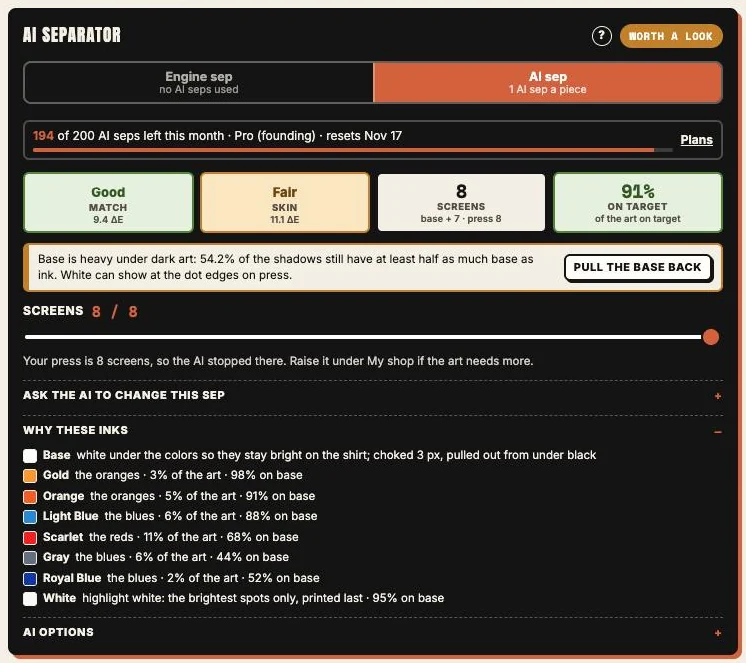
With AI sep picked, the AI card runs on every new piece of art. It reads the art, plans the inks, rips, scores the predicted print against your art, and keeps whichever sep scores better: the engine's or its own.
- Match: the average color difference between the predicted print and the art, in ΔE. Under 5 is excellent, under 8 is press ready, under 11 is good.
- Skin: the same score on skin tones only, when the art has faces.
- Screens: total screens, base included. Drag the Screens slider to trade screens for match; the card tells you what each change costs.
- On target: the share of the art within tolerance.
- Fix tips: problems it finds, with a button to fix each one. Every fix is tested, and if the match gets worse it's put back.
- Why these inks: one plain reason per ink.
- The assistant (Pro and Shop): ask for a change in plain words, like "add a gold for the eyes" or "drop to 8 screens", and it makes it and re-scores.
On an Engine sep you can still click Check this sep with AI to run one AI sep on that piece.
10Settings
Art size and upscale
Print width, DPI check and the upscaler, the same as Before the rip.
Garment and base
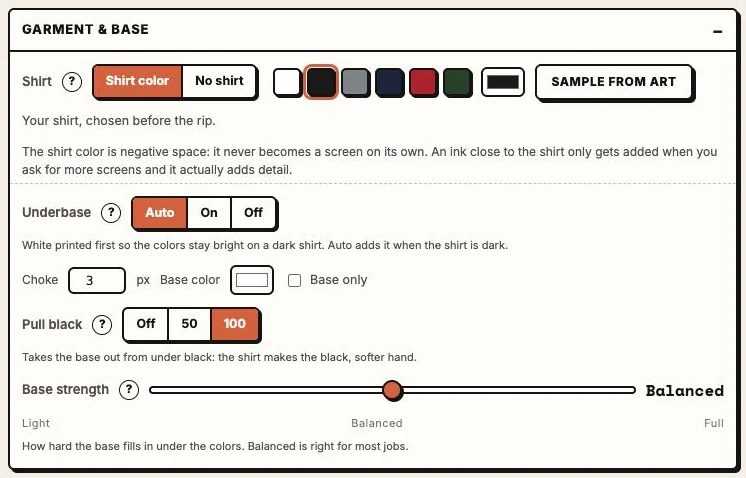
Shirt color or none. Underbase Auto, On or Off; Choke the base (2 to 3 px is standard); Pull black so the shirt makes the black; Base strength from Light to Full; Base only for a single base film.
Color settings
Method, presets and Color Crunch (fold the closest inks until the job fits your screen count), the ink list, Ink blending (how freely Sim inks mix; 50 is classic sim), Auto-tune after every rip, and Black detail by shirt.
Art adjust
Saturation, vibrance, brightness and contrast before the rip. Tap a preset to re-pull inks from the adjusted art.
Films and dots
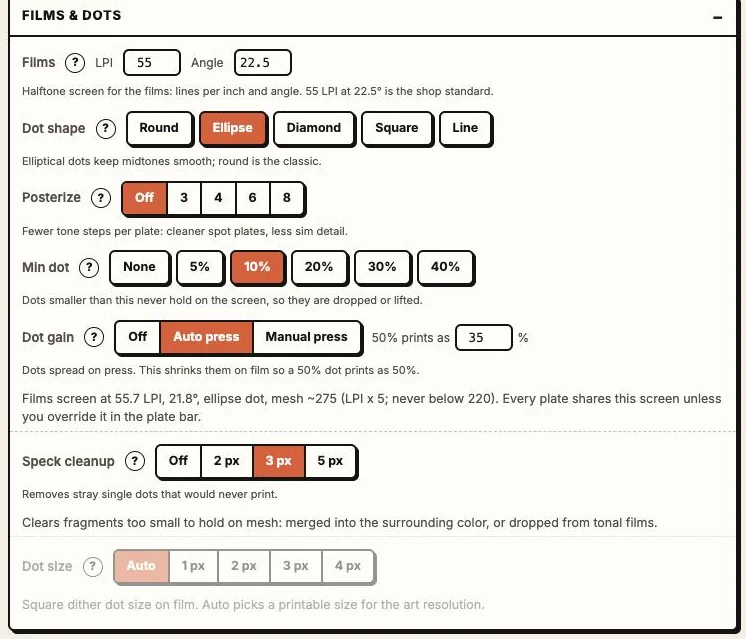
LPI and angle (45 LPI for manual presses, 55 for autos), dot shape (ellipse is the default), posterize, min dot (10% holds on 230+ mesh), dot gain compensation for auto or manual presses, and speck cleanup.
Finishing
Pre-rip halftones for shops without a RIP (600 or 1200 dpi dots straight out of the download) and Distress: one texture knocked out of every plate at the same spots so it stays registered.
Film marks and info
Registration marks, crop marks, a step wedge and a label with job #, customer, print location, artist and notes. Pick what each film shows: hit number, ink and nearest match, mesh, LPI and angle, shirt, size and date.
11Films and downloads
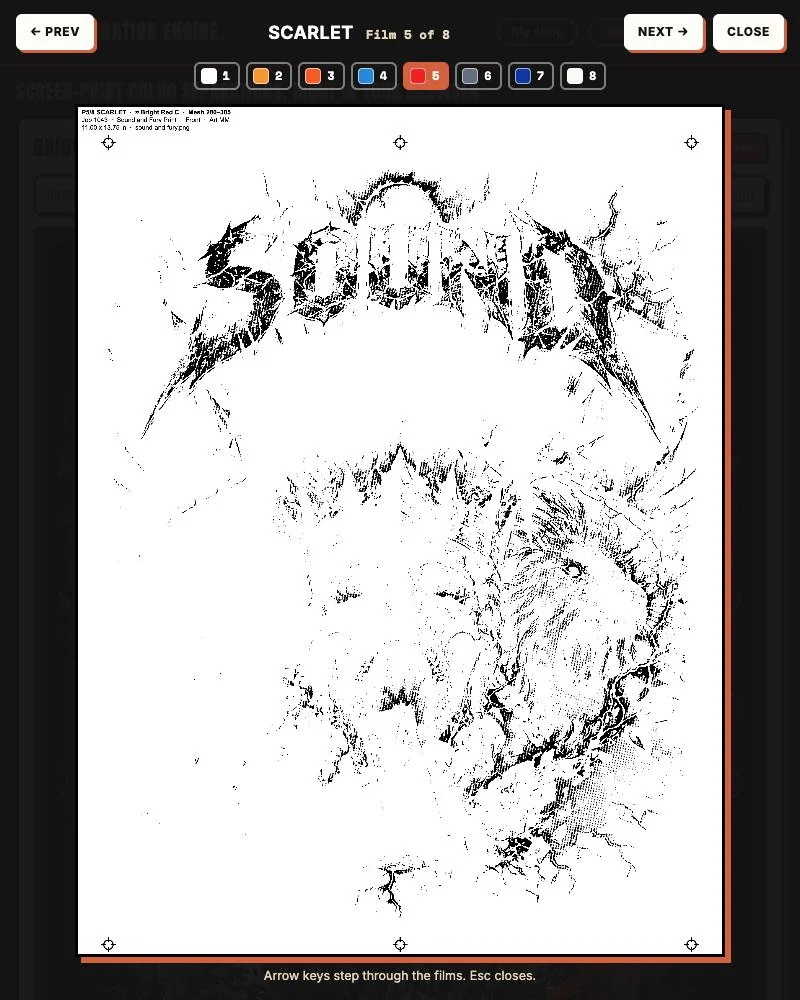
Preview film (under Film marks and info) shows each film as it will print, with marks and the label. Step through every film with Prev and Next, the arrow keys, or the numbered chips. Proof puts your art beside the simulated print with every film.
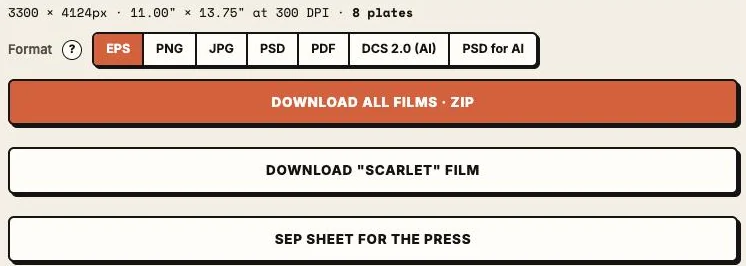
Pick a format and download:
| Format | What you get |
|---|---|
| EPS | 1-bit PostScript films at true print size. The RIP standard. |
| PNG / JPG | Black on transparent (PNG) or on white (JPG) at 300 DPI. |
| PSD | One Photoshop file with every plate as a named spot channel. |
| Films as pages, ready to print. | |
| DCS 2.0 | For Illustrator separations. For Photoshop, use PSD. |
| PSD for AI | A PSD set up to place in Illustrator for host-based separations. |
Download all films · ZIP gets every plate; Download current plate film gets the one you're viewing. The sep sheet for the press lists every screen with its ink, mesh, print order and flash.
12My shop, tour and tips
- My shop (top right): your press's screen count, so the engine and the AI never go past it, and your ink library, so picks snap to the inks you stock.
- Tour in the menu, or the ? next to Print preview, replays the guided tour. First-time tips pop up once as you meet each feature.
- Tips for the best separations goes deeper on art prep, underbase, halftones and press checks.
Try it on this art. Download the Sound and Fury file, open the tool, pick Engine sep or AI sep, drop it in and choose a black shirt.